Overview
Conditional Swatch Images allow you to change the swatch image of a specific option based on the selected values of other options within the same product group.
This feature ensures that customers always see the correct visual representation for the exact product configuration they have selected — even when multiple options influence the appearance.
Example
Imagine a product group that includes multiple options:
- Color
- Magsafe (With / Without)
- Finish (Matte / Glossy)
- Material (Plastic / Metal)
The appearance of a color swatch may vary depending on a combination of these other option values. For instance:
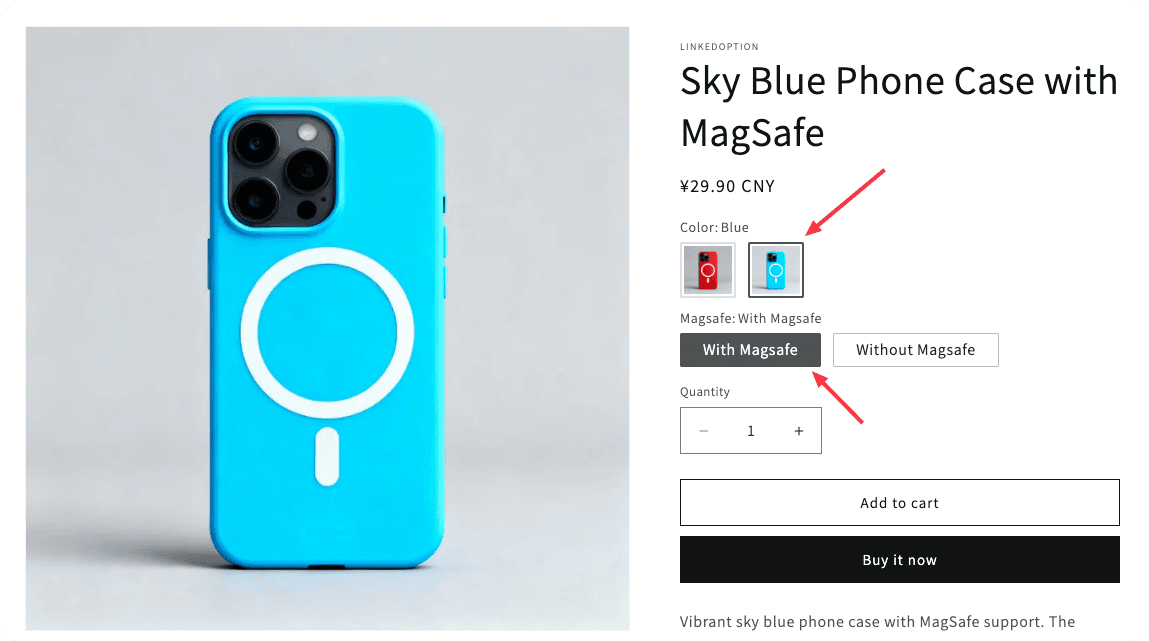
- Color = Blue + Magsafe = With Magsafe → Show the “Blue + Magsafe” swatch
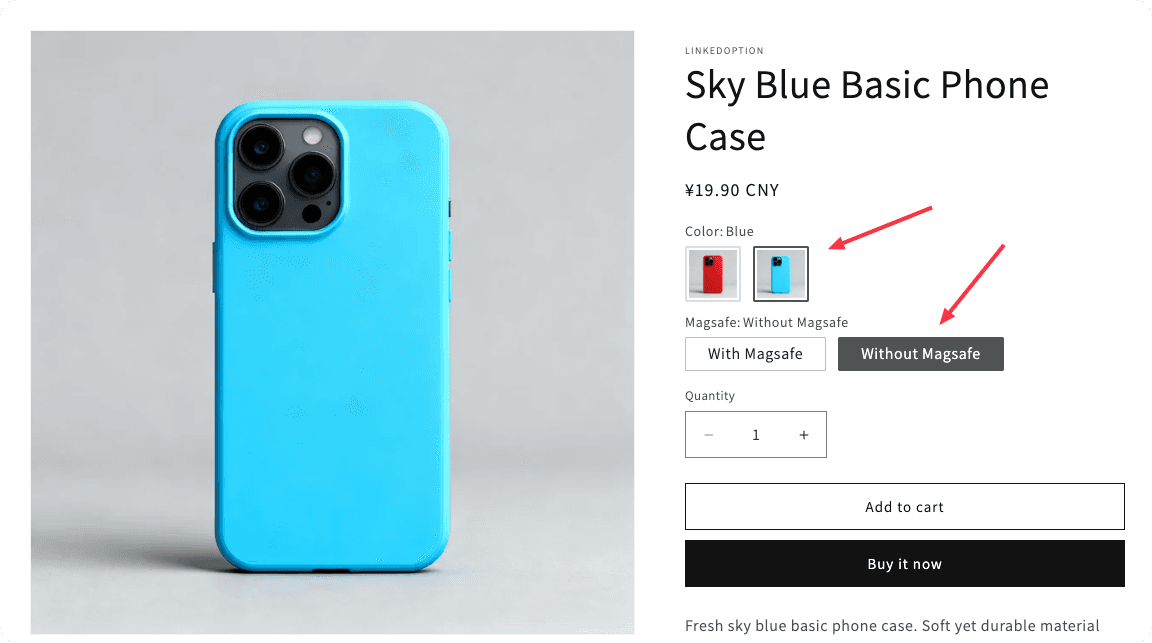
- Color = Blue + Magsafe = Without Magsafe → Show the “Blue without Magsafe” swatch
- Color = Blue + With Magsafe + Matte Finish → Possibly show a third version of the swatch
- Color = Blue + With Magsafe + Glossy Finish + Metal Material → Show yet another variation if needed
With Conditional Swatch Images, you can define rules based on any combination of option values — not just two — allowing you to support complex product variations with precise visual accuracy.
How to Use Conditional Swatch Images
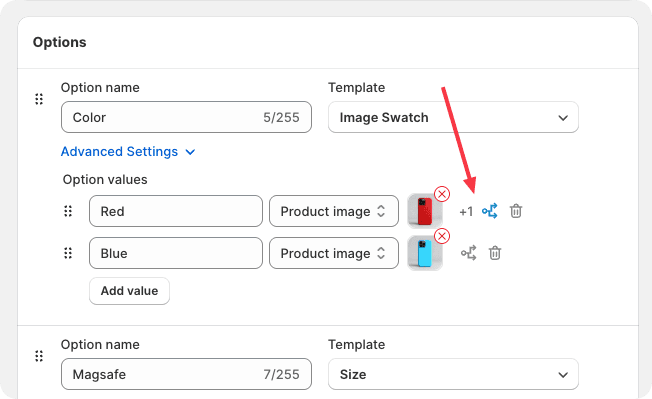
Click the condition icon next to the swatch image.
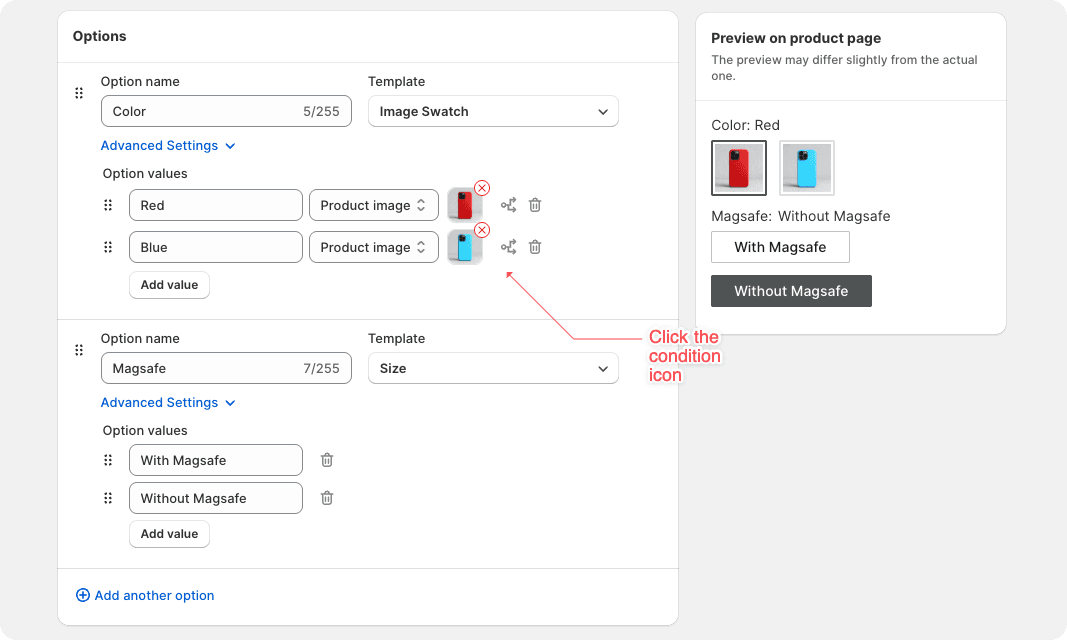
In the modal that appears, enter the conditions and assign the corresponding swatch image.
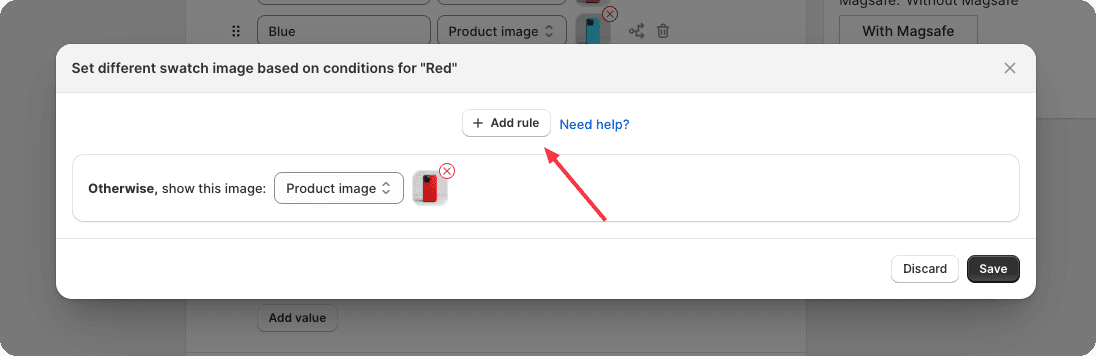
You may add multiple condition blocks to support different conditional swatch scenarios.
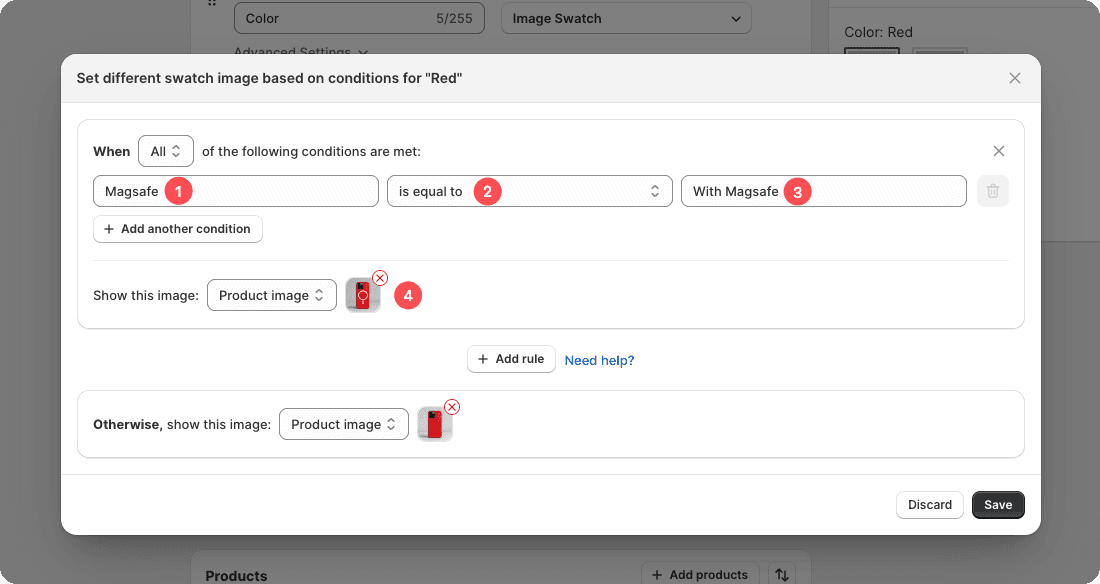
After completing the configuration, simply click Save.
You will then see the number of condition blocks displayed on the page, and the condition icon will appear in an active state.
Resulting effect