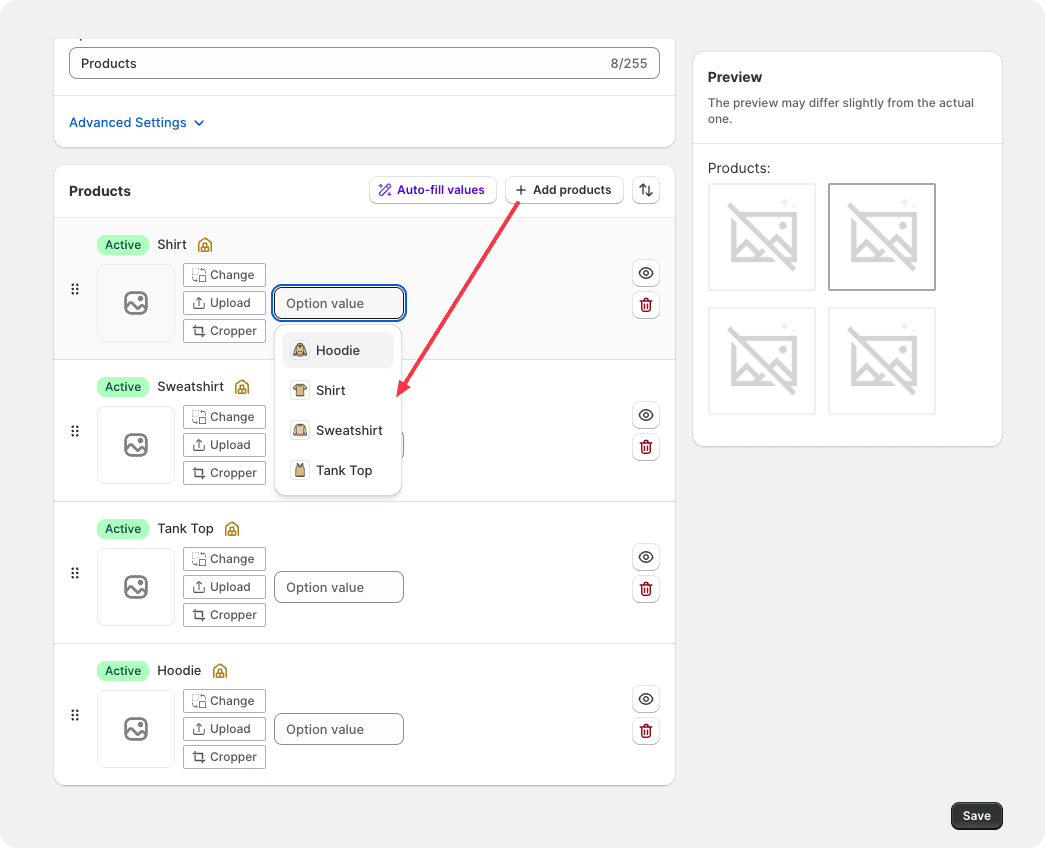
This feature allows you to efficiently update swatch images across multiple product groups at once. It is particularly useful when your product groups use variants to represent different product outlines—such as Shirt, Sweatshirt, Tank Top, or Hoodie—and you want all products that share the same option value to use a consistent swatch image.
Instead of configuring each product group individually, you can update all related swatch images with a single action.
How It Works
When many product groups use the same option values (e.g., “Shirt”), you may want all of them to display the same swatch image. The Bulk Update Options feature makes this possible by letting you edit the swatch image for an option value once and automatically apply it across all product groups.
Steps to Bulk Update Swatch Images
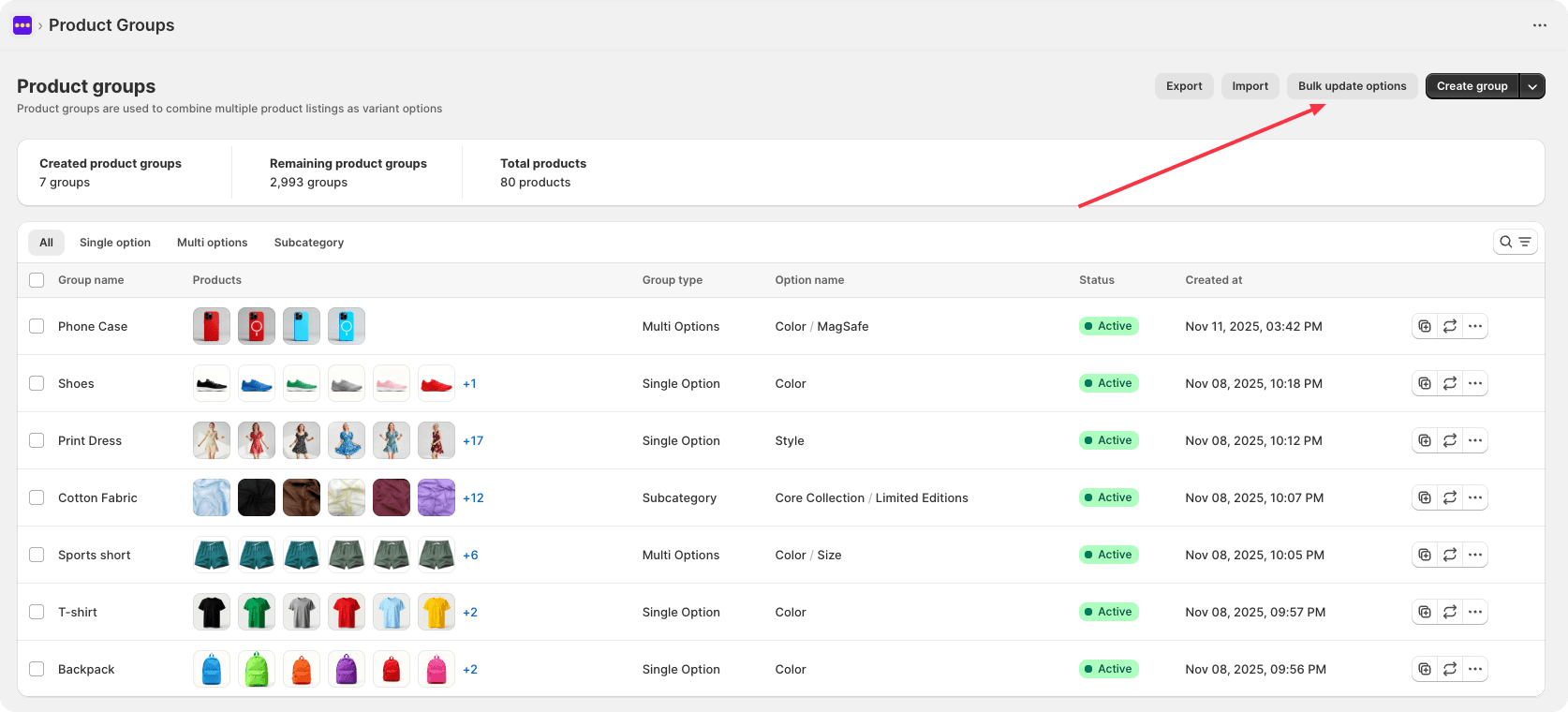
Step 1: Open the Product Group List, Go to the Bulk Update Options Page
Click the “Bulk update options” button located at the top-right of the product group list page. This will take you to the full options list.
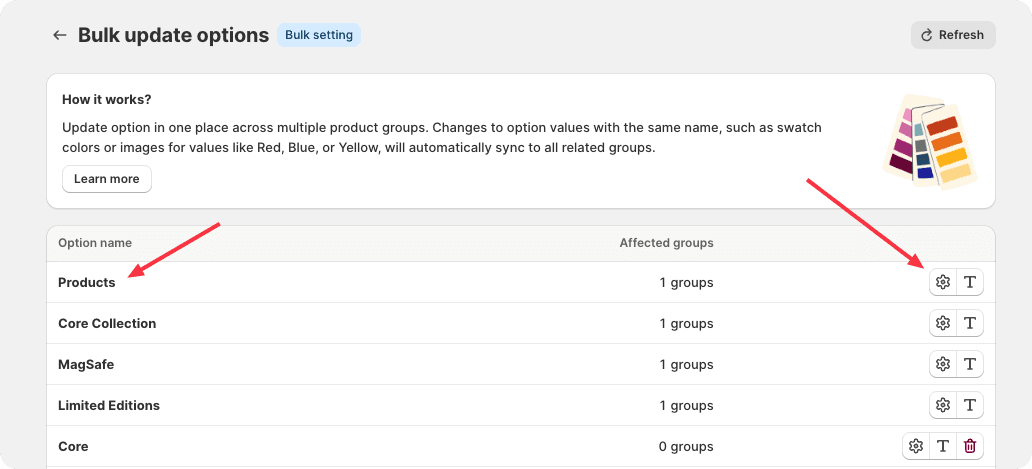
Step 2: Select the Option You Want to Edit
From the options list, choose the specific option (e.g., Style, Product Type) you want to update.
This will open the option details page.
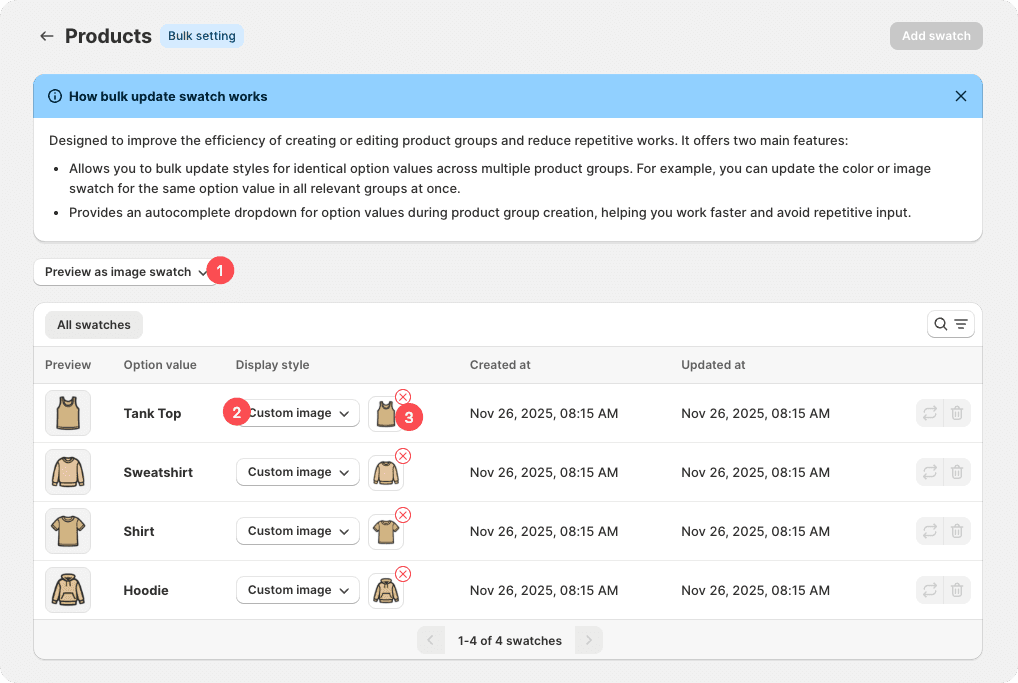
Step 3: Setup swatch image
Set Preview as image swatch, In the swatch row, choose Custom image, Upload or select the new swatch image you want to apply to this option value.
Step 4: Save and Sync
Click Save and Sync to apply your changes.
Additional Benefit
When you create new product groups in the future, the option value autocomplete list will automatically display the swatch image you previously configured. If you select that item, the correct swatch image will be applied instantly—saving you even more time during product group creation.