
Overview
If you see a ⚠️ Removed from Shopify Badge in your rule means there is a status mismatch between our app and your Shopify store.
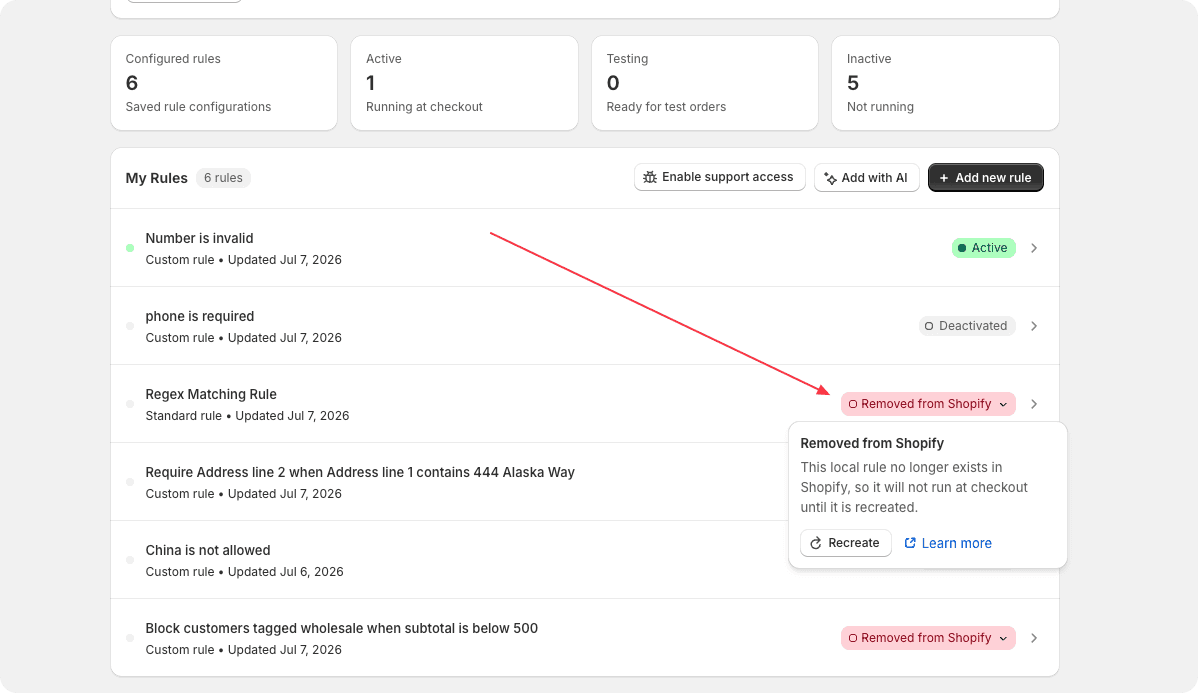
Why does this badge appear?
This badge indicates that this validation rule no longer exists on Shopify, even though the historical record is still saved in our app's database.
This happens due to a Shopify platform limitation:
- When you delete a rule directly inside your Shopify Settings (Settings > Checkout > Checkout Rules), Shopify instantly removes it from your store.
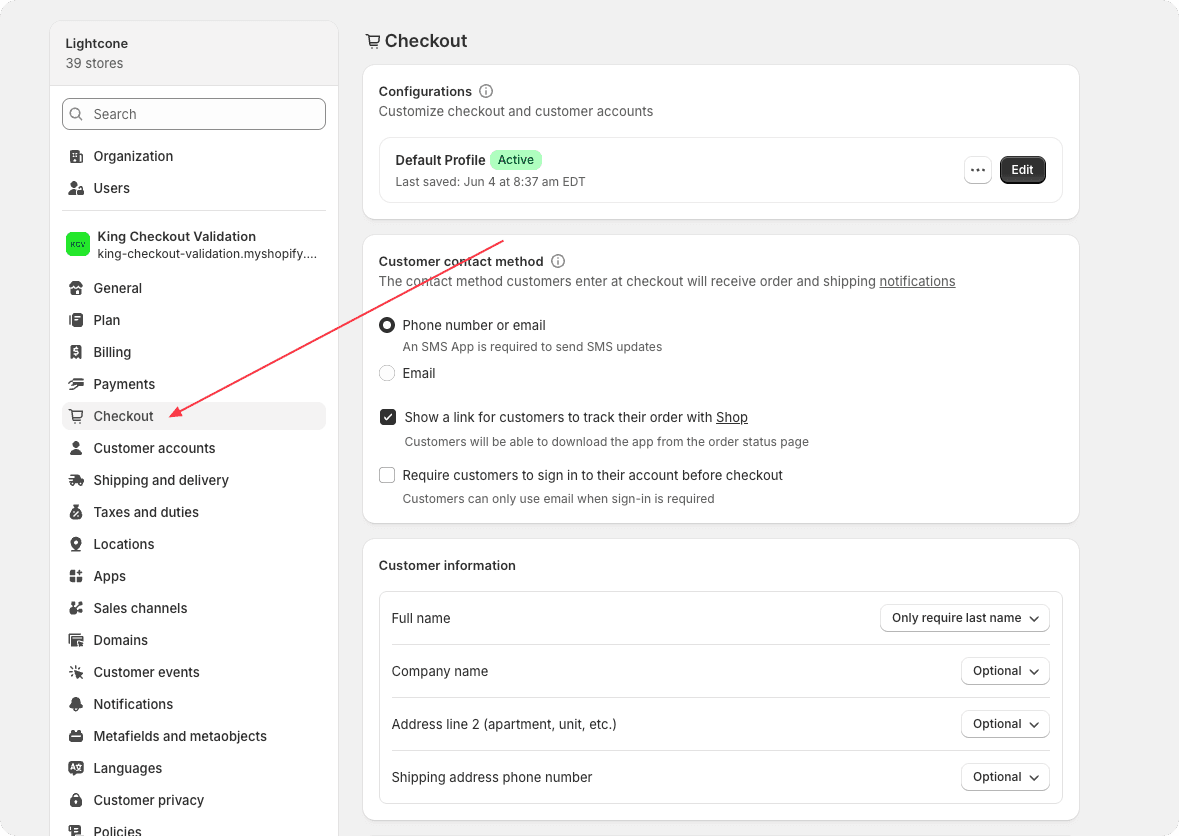
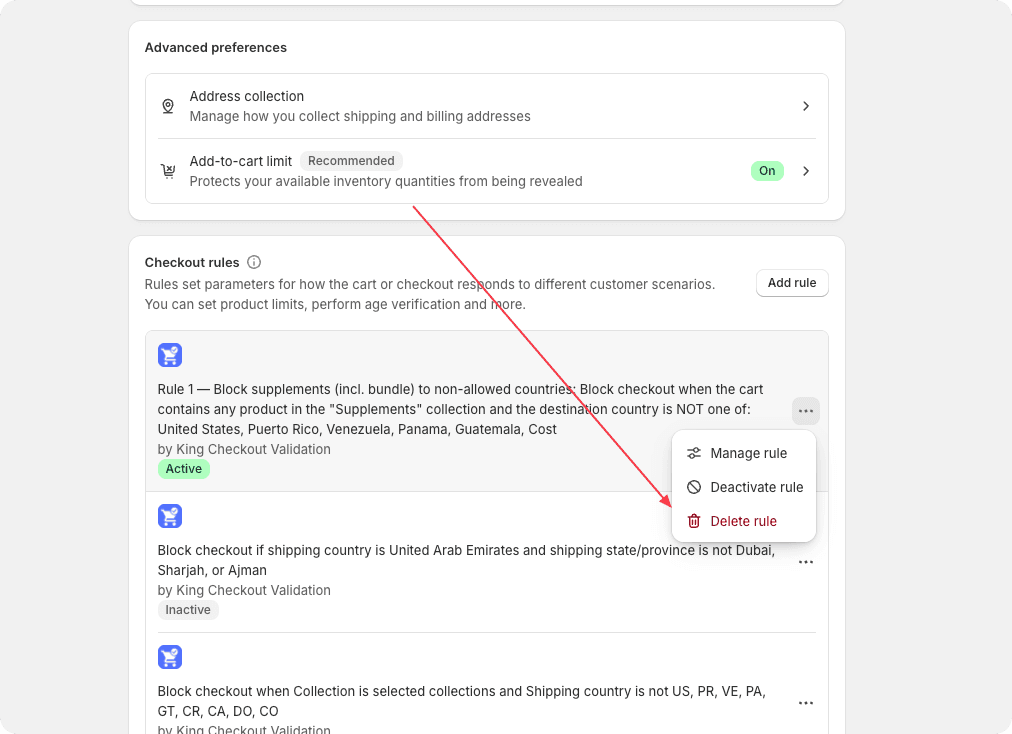
- As a result, our app is kept "in the dark" about the deletion. The rule is actually dead on your storefront, but a "ghost" record remains on our dashboard until you take action.
How to Resolve It
Depending on your goals, you can resolve this status mismatch in one of two ways:
Option 1: Permanently remove the record from our app
If you no longer need this validation rule, you can safely wipe the outdated record from our dashboard.
- Locate the rule with the
⚠️ Removed from Shopifybadge. - Click the Delete (or Trash) icon next to it.
- Confirm the action to clean up your dashboard database.
Option 2: Recreate the rule and sync with Shopify
If you deleted the rule in Shopify by mistake, or want to start using it again, you can easily deploy it back to your store.
- Click the Recreate button next to the bugged rule.
- Our app will automatically push the rule's configurations back into Shopify's system.
- Go to your Shopify Admin > Settings > Checkout, scroll down to Checkout Rules, and verify that the newly recreated rule is present.